Author: clogan

  • Setting up a Godaddy certificate in IIS

    Godaddy’s documentation completely misses the create certificate request process in IIS. This for myself resulted in the SSL certificate disappearing each time I would look in the certificates section after adding it.

    Manually install an SSL certificate on my IIS 10 server | SSL Certificates – GoDaddy Help CA

    Creating the Request

    • Click on your Start Menu, then click Run.
    • In the prompt, type inetmgr and click OK to launch the Internet Information Services (IIS) Manager.
    • Under the Connections panel on the left, click on your Server Name.
    • In the main panel under the IIS section, double click on Server Certificates.
    • Under the Actions panel on the right, click Create Certificate Request.
    • Fill out the Distinguished Name Properties
    • Next, set the Cryptographic Service Provider Properties. Use the drop-down menus to select “Microsoft RSA SChannel Cryptographic Provider” as the cryptographic service provider, and a bit length of “2048”
    • The specify a file name & path for your certificate request

    Adding the Key to the Certificate

    • Next open the certificate request in notepad and copy the CSR.
    • Then go back go to Godaddy click through to certificate details page for your cert.
    • You should find a “Manage Certificate” section at the bottom where you can paste your certificate request.
    • Then click “Add Change” and “Submit All Changes”

    Now you can download the certificate for IIS only this time it will contain your machines key.

    • Back in IIS in the main panel, double click on Server Certificates.
    • Under the Actions panel on the right, click Complete Certificate Request.
    • On the new window, click … to browse, find your previously uploaded primary certificate file and click Open. Don’t worry about the file type if it’s not a .cer file type the open dialog is defaulted to.
    • Add a Friendly name to easily identify this certificate in the future.
    • In the certificate store option, select Web Hosting or Personal and click OK.
  • Multiple Projects under the same Solution in Visual Studio

    Multiple Projects under the same Solution in Visual Studio

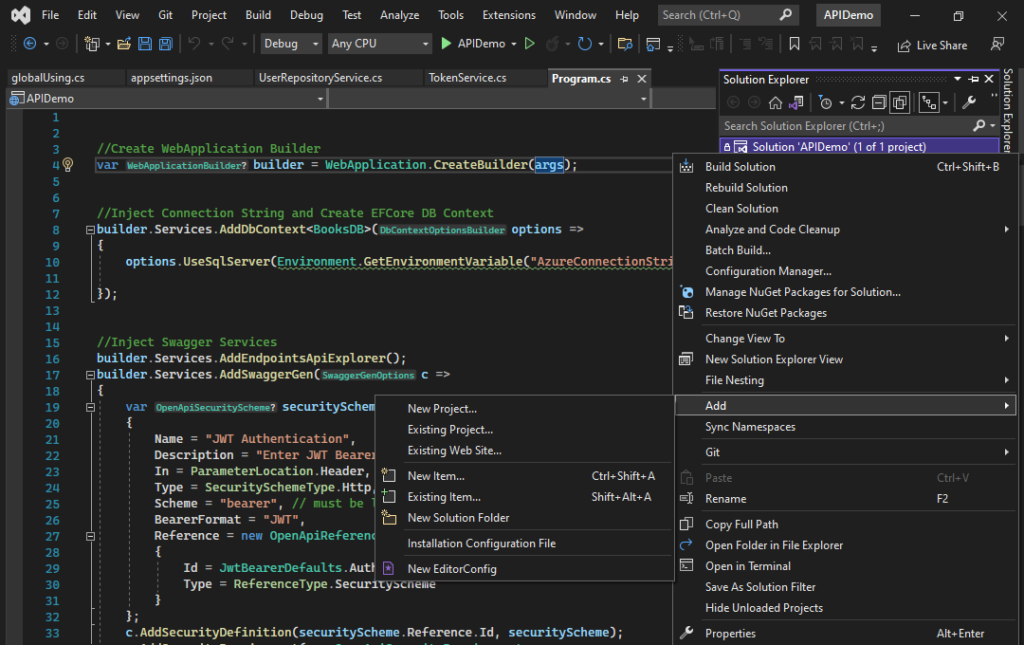
    Not sure why this was so hard to find but in Visual Studio it’s fairly easy to add multiple projects under the same solution.

    Open whichever solution you want to be the main & in solution explorer right click it then select Add > New Project or Existing Project.

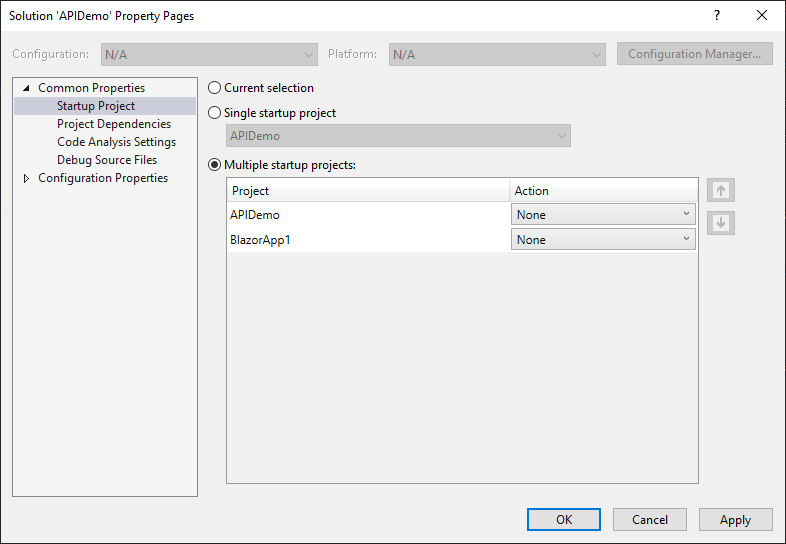
    Then in Properties you can specify multiple startup projects & choose their priory & startup options.

  • Nuget NU1108

    Even with all the namespacing hierarchy goodness now a days to stay out of naming conflicts. Nuget will present you with this unassuming error when you have your project folder named the same as the nuget package.

    error NU1108: Cycle detected

    Learned this first hand when trying to install Piranha CMS in a .net core project folder named piranha. The best work around is by using a unique project name.

  • SQL Server Management Studio Reset Settings

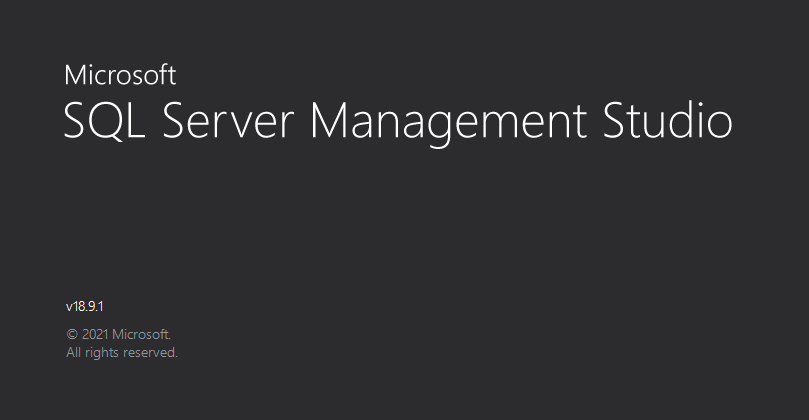
    SQL Server Management Studio Reset Settings

    If you have totally messed up your user settings in SSMS. You’ll find it’s not as easy as deleting your user settings file:

    C:\Users\<user>\AppData\Roaming\Microsoft\SQL Server Management Studio

    After deleting SSMS will restore the previous settings from somewhere in the application. The best way to reset them totally is to run reset setting from a command prompt. First find ssms.exe mine was in:

    C:\Program Files (x86)\Microsoft SQL Server Management Studio 18\Common7\IDE

    Then run:

    .\ssms.exe /resetsettings

    That’s it SSMS will boot up with a fresh user settings file.

  • Saving Data on Android

    Saving Data on Android

    With just a few settings you can save an substantial amount of mobile data on your Android device

    Youtube

    Changing these 2 settings will help lower the data usage of Youtube greatly.

    Turn on
    Profile -> Settings -> General -> Limit mobile data usage.

    Turn off
    Profile -> Settings -> Autoplay -> Autoplay next video

    Facebook

    Turn on Profile -> Settings ->Data Saver

  • Changing the Control & Command Keys in Ubuntu

    Changing the Control & Command Keys in Ubuntu

    You can map the Ctrl to the Win / Super key besides the Command key in Gnome easily:

    1. Go to System -> Preferences -> Keyboard
    2. Open the Layouts tab
    3. Click the options… button
    4. Open the Alt/Win key behavior
    5. select Ctrl is mapped to Win and the usual Ctrl keys